Google Pixel 11 tricks you’re missing
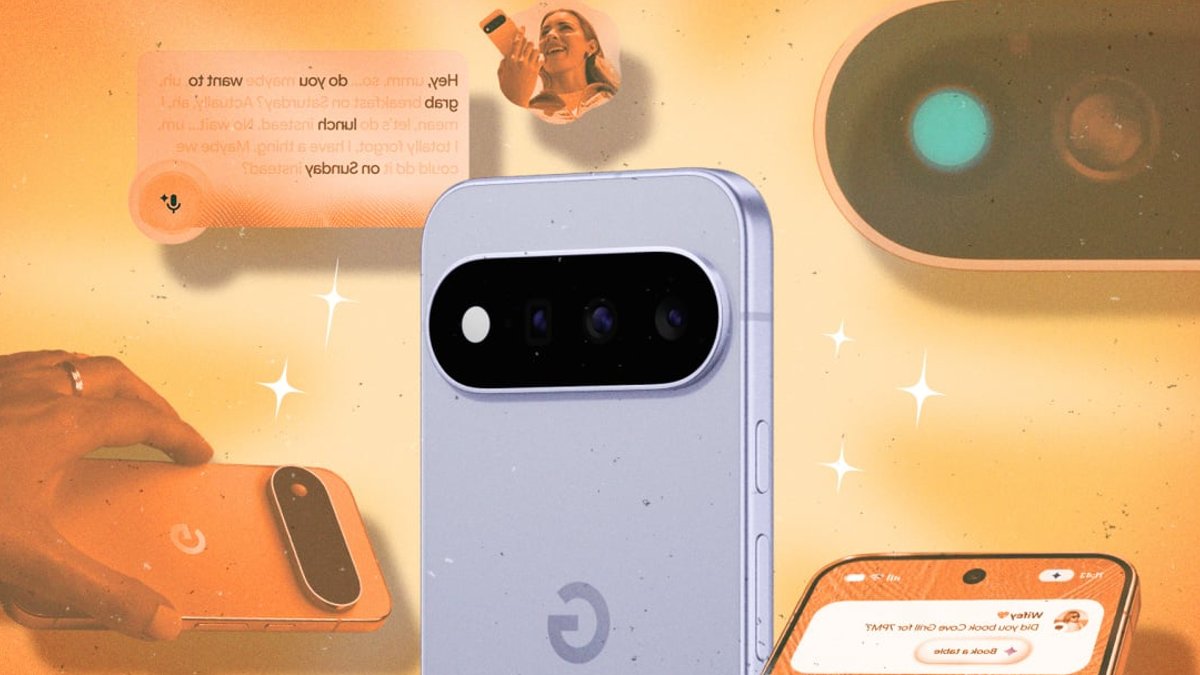
The Google Pixel 11 series, released this year, combines hardware upgrades with software innovations driven by AI and Android 17. While the phones share some features, several tools remain exclusive to the 2026 flagships. Below are ways to maximize their capabilities.
HiLight turns the phone’s LED into a personal alert system
The Pixel 11 introduces HiLight, a rear LED that flashes for calls or Gemini chats from favorite contacts. By default, it works only in these scenarios, with basic color options in Settings under System > HiLight. For broader use, HiLight Studio, a third-party app, extends support to additional apps and allows finer color adjustments for different notifications.
All of these hacks are exclusive to the Pixel 11 series, though we might see some of them trickle down to older handsets over time.
Related: Garmin Unveils New Rugged Sport Watches
Camera Looks add subtle filters to avoid over-processed photos
Pixel photos are recognized for their clean, polished appearance, though this can sometimes feel artificial. The Pixel 11’s Camera Looks provide a way to reduce processing. Open the Camera app, tap the controls button in the lower right, then Looks to choose from four presets: Original (default Pixel processing), Natural (softer details), Shadows (deeper contrast), and Vanilla (warm, golden tones).
Super Zoom and Pro Zoom: How AI enhances images
The Pixel 11 Pro and Pro XL support Pro Zoom up to 120x, while the Pixel 11 and Pro Fold cap at 30x with Super Zoom. Both use AI differently. Super Zoom sharpens images by merging frames and adjusting colors, similar to traditional editing. Pro Zoom, however, generates new details not present in the original shot. The first use requires downloading a generative AI model.
Google Photos saves both the AI-enhanced and raw versions of Pro Zoom shots, allowing later comparison. To avoid AI entirely, users should stay below 30x zoom.
Related: Overwatch Season 4 Offers Customizable Rewards
Magic Capture snaps photos while recording video
Magic Capture addresses a common issue: capturing stills without interrupting the moment. Enable it in the Camera app by tapping the icon left of the shutter button, then start recording video. The phone’s AI later extracts key frames as still images.
A built-in teleprompter for content creators
For those who record videos on their Pixel 11, the built-in teleprompter simplifies scripted content. Open the Camera app, switch to video mode, and tap the settings button in the top left. Under the Creator tab, enable Teleprompter. During recording, text scrolls automatically as the user speaks.
Pixel Search speeds up app navigation
The Pixel 11’s Pixel Search differs from the home screen search bar—it sits above the app grid. Swipe up to open the app drawer, tap the search box, and follow the intro to customize which apps it scans, including Google Calendar, Drive, Gmail, and Photos.
Related: Big Walk Debuts on PS5 to Acclaim
Rambler improves voice dictation with live editing
The Pixel 11’s Gboard includes Rambler, an AI-powered dictation tool that handles natural speech more effectively than standard voice-to-text. It can edit in real time—if a user says, “the meeting at 2pm… or rather 3pm,” it corrects the time in the transcript. Rambler also allows later edits with voice commands like, “change Friday to Saturday.”
Set it up by tapping the microphone in Gboard, then following the prompts.
A minimalist bedside clock for overnight charging
The Pixel 11’s Charge screensaver transforms the phone into a simple bedside display when placed on a magnetic wireless charger. Enable it in Settings > Display > Screen saver, and it will show a clock and battery status in either orientation.

Garmin Unveils New Rugged Sport Watches


